It serves as a virtual workspace for notetaking, document management, organization and task tracking. WORKDESK is designed to make digital work feel as intuitive, organized and satisfying as a tidy physical office space, built around speed, organization, and flow.
A private desk for uni, work and everything in between, running on a server in my house.
WORKDESK lives at work.personasoftwlg.com. It brings files, writing, notes, to-dos and deadlines together in one place, and it all stays on my own machine.
Why it exists
My working life used to be spread across too many places. Uni lived in Canvas (the university's online learning system), documents were scattered between cloud drives and my laptop, deadlines lived in my head, and good ideas landed on whatever scrap of paper was nearby. Every switch between them cost a little focus.
WORKDESK started in June 2026 as the WORK tab on my home dashboard, a place to keep my business analysis notes and templates. It kept growing, and in July it moved out into its own app.
Three wishes have shaped it since. I wanted one place, where switching to a different project means opening a different paper and everything else stays exactly where I left it. I wanted my files on my own server, stored on a machine at home, where I own every byte and decide who gets to see it. And I wanted a desk worth sitting at. Study means long hours at a screen, so the space should be calm, easy to read and a little bit beautiful.
A tour of the desk
Papers
Each project gets a paper: a workspace with its own files, scratch pad, notes and history. The name comes from uni papers (what New Zealand universities call courses), and the idea comes from real desks, where every project gets its own binder.
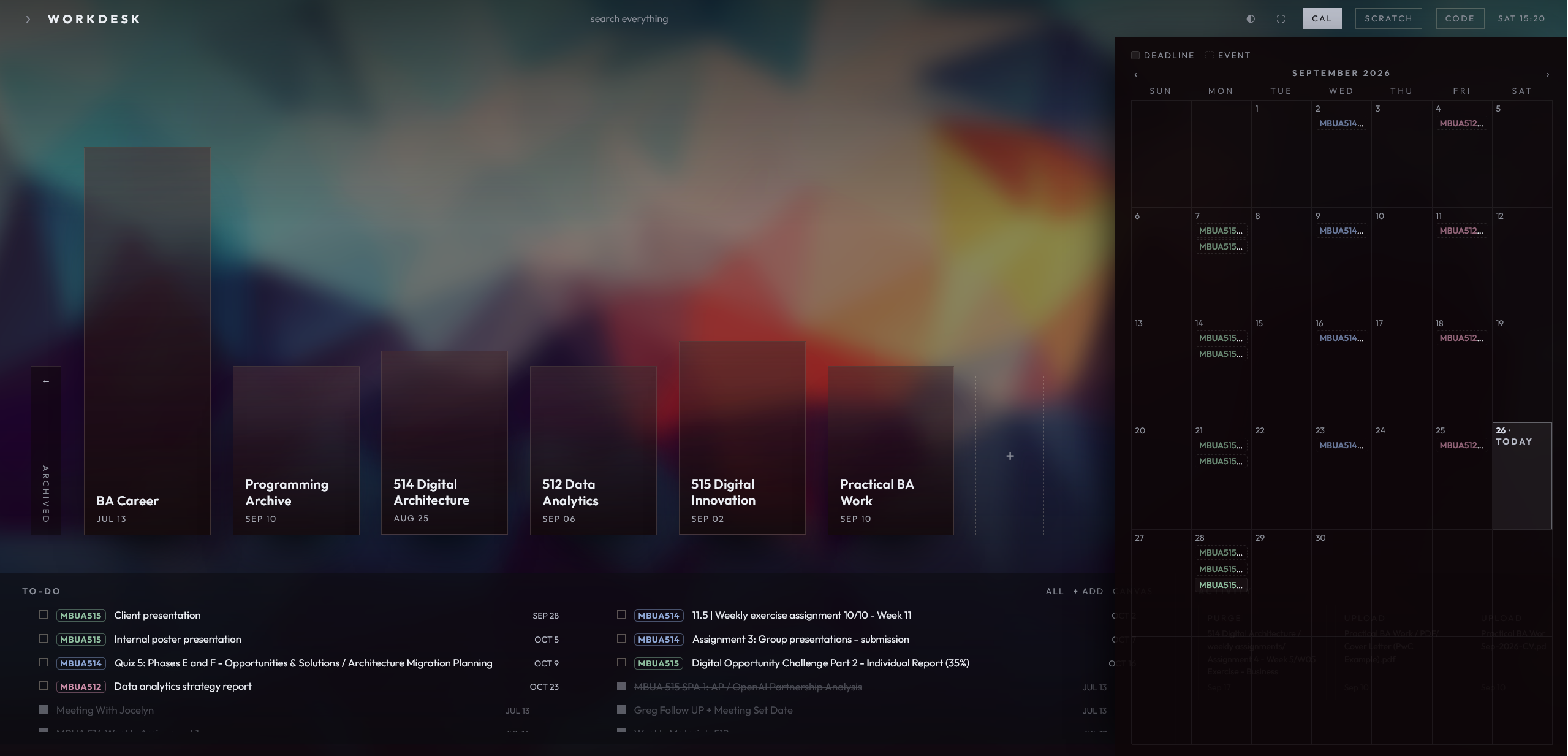
The home screen shows papers as glass slabs on a shelf. Adding one takes a name and a click, and you're inside it straight away. Papers can be renamed, dragged into a new order, or archived by dragging them off the shelf. Archiving tucks a paper away with every file and note kept, so finished courses stay out of sight and are still there when a later assignment needs them.
One paper, the Programming Archive, holds the PHP, Python and cybersecurity tutorials from my teaching days, converted into readable pages so they have a permanent home.
A tour of the desk
Files that behave like a desk
Every paper is a complete file workspace. Drag files in from your computer (whole folders work too, subfolders and all), create new Markdown, text, Word, PowerPoint or Excel files in place, and rename, move, copy and paste them the way you would on your own computer. Right-click menus, selecting several files at once and dragging onto folders all work, and a move can be undone straight from its confirmation message.
Deleting sends things to the paper's trash, where they wait for 30 days with a Restore button the whole time. That month is there for the 2am delete I'd regret at 9am.
A tour of the desk
Reading and writing
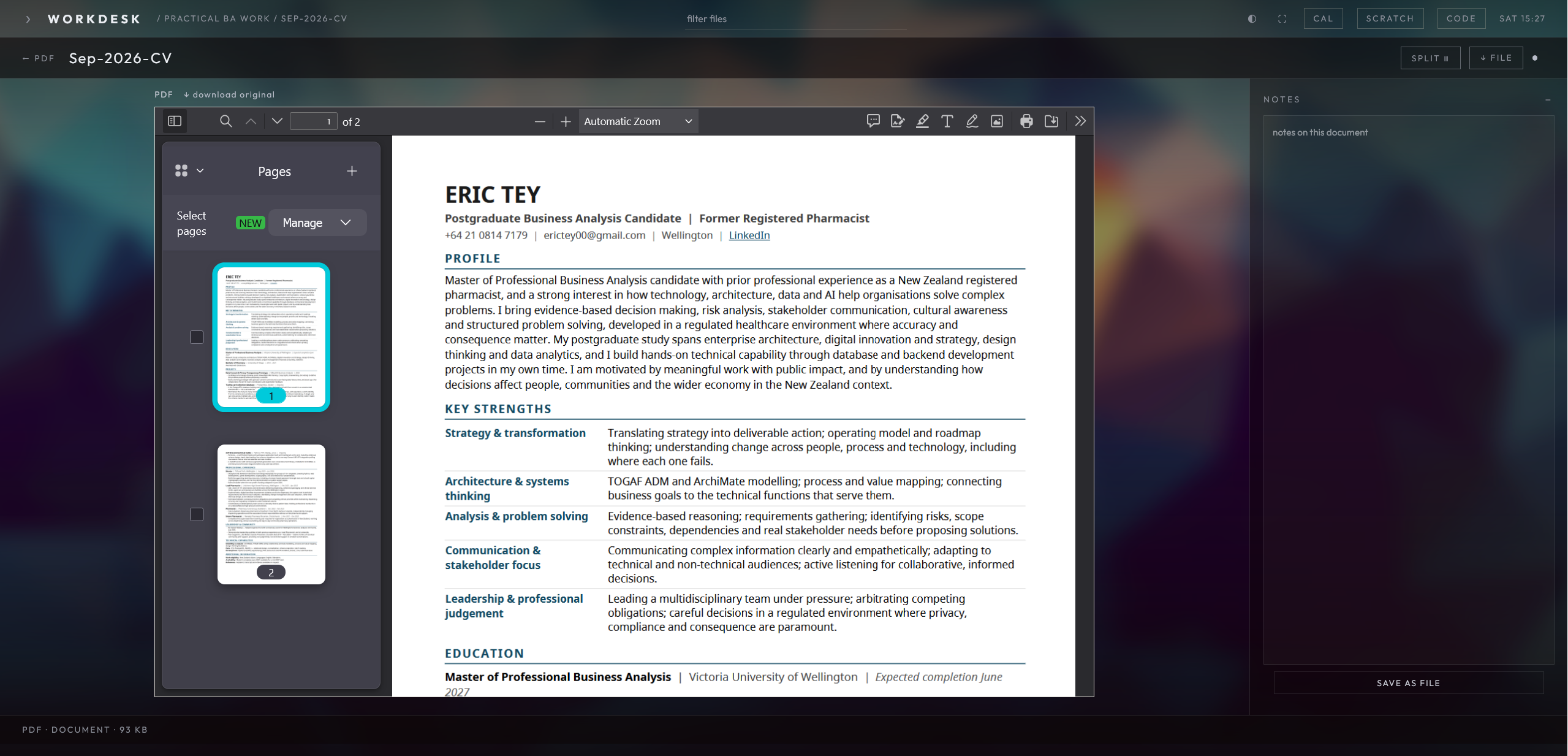
Almost anything opens properly: Markdown notes with coloured code and tick-boxes, CSV spreadsheets shown as tables, PDFs, images and video. (Markdown is plain text with a few symbols for formatting, such as # for a heading.)
Word, Excel and PowerPoint files open in a real office editor right inside the page, and saves go straight back to the file. If that editor is ever down, the file still opens as a read-only preview.
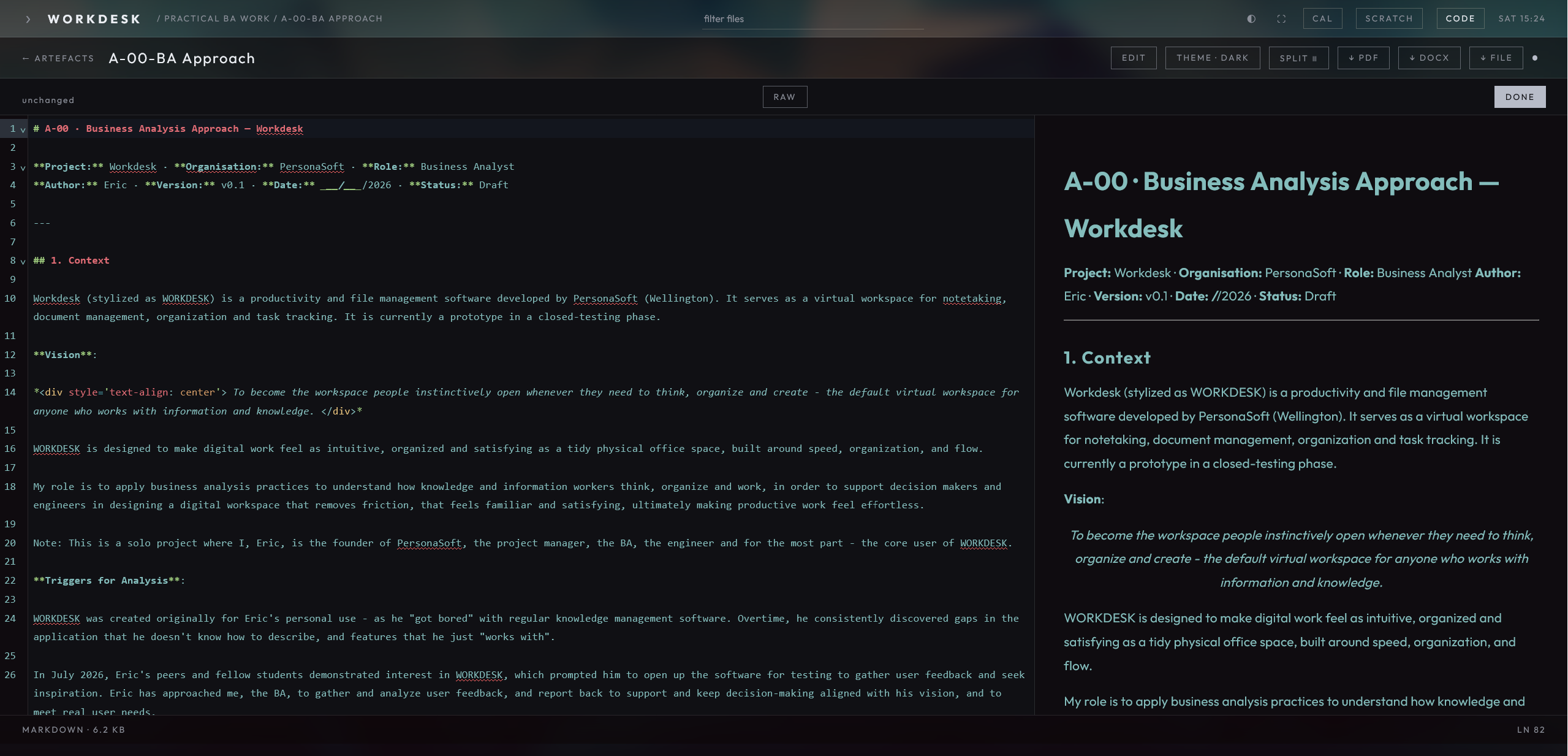
Text files open in a code-style editor with a live preview beside it, spellcheck and autocorrect for Markdown, and autosave. If a file has changed somewhere else since you opened it, WORKDESK pauses and offers to reload, so every save builds on the latest version.
Every document also has its own notes panel. It works like a private margin for thoughts about a reading, follows the file when it's renamed or moved, and can be saved out as a file of its own.
Split view puts two documents side by side (drag one from the sidebar onto the editor), which is handy for writing an assignment with the brief open next to it. And when something has to be handed in, a Markdown draft downloads as a PDF or a Word document, so I can write in plain text and still submit in the format uni asks for.
A tour of the desk
Scratch pads and the CODE pad
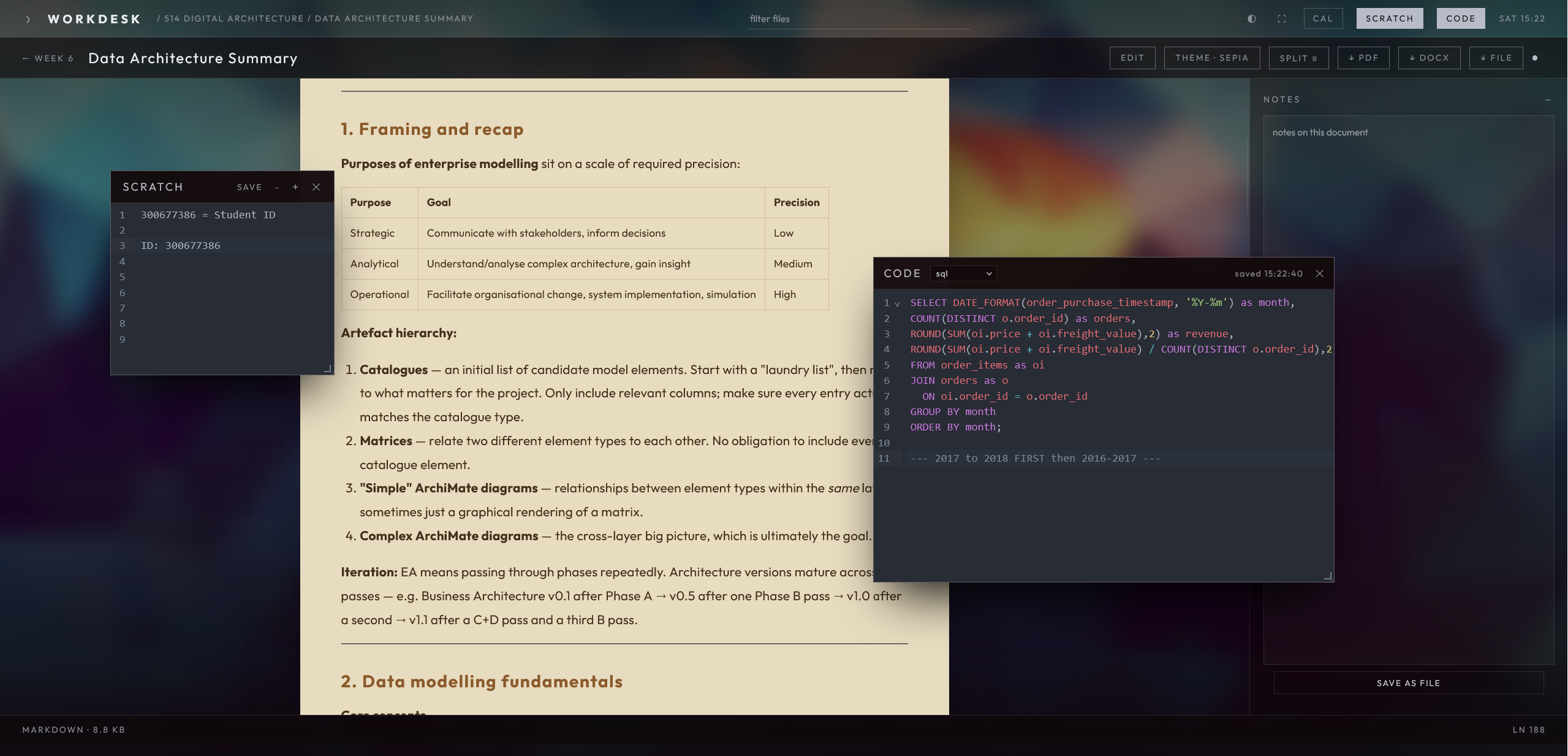
Floating scratch pads sit on top of everything, ready for the thought that turns up mid-task. Open as many as you like, drag and resize them, and save one into a paper as a proper file once it turns out to matter.
The CODE pad is the same idea for code snippets, with colour highlighting for Python, PHP, SQL, JavaScript and a handful of other languages.
A tour of the desk
Deadlines, to-dos and the calendar
A to-do list runs along the desk. Give a task a due date and it shows up on the calendar as well, because a deadline is simply a task with a date attached. The list shows the next 30 days by default (with a switch to see everything), puts urgent items first, and keeps a DONE history grouped by month and paper. On a slow week, that history is good proof that things did get done.
WORKDESK also reads my uni calendar straight from Canvas. Assignments, quizzes and events arrive on their own, each course gets its own colour, and deadlines are drawn differently from events so they stand out. The sync only reads from Canvas. It checks for changes at most every 15 minutes, looking one week back and eight weeks ahead, and the private feed address is stored encrypted. Canvas assignments can be ticked off like any other task, and my own events can go on the same calendar.
A tour of the desk
Activity: the desk's memory
Every file action gets written down, including uploads, edits, new files, renames, moves, copies, trashing and restoring, along with when each one happened. The home screen shows a strip of recent activity that can be filtered, and each card opens the file it mentions. Every paper also keeps its own fuller log. Bursts of autosaves fold into a single line, so the log stays readable.
It answers questions like "when did I last touch that report?" without any digging.
A tour of the desk
Finding things
Search works across every paper from the home screen, or inside one paper at a time. A few keyboard shortcuts keep things quick:
| Key | Does |
|---|---|
/ |
jump to search |
N |
new file |
U |
upload |
F2 |
rename |
Delete |
move to trash |
Ctrl + A |
select everything |
Ctrl + C / X / V |
copy, cut, paste |
Ctrl + S |
save in the editor |
A tour of the desk
On the phone: Workdesk Go
Workdesk Go is a lighter version made for phones. Sign in, open a paper, browse its folders, read Markdown notes, download a file, or upload straight into the folder you're looking at, like a photo of the whiteboard right after class. Add it to your phone's home screen and it opens like an app.
A tour of the desk
Making it yours
The look is called Reading Room Royal: a futuristic library where papers stand like glass panes and the room shows through them. There are three colour themes (emerald, porcelain and burgundy), and you can set your own backdrop photo, which is softly blurred and dimmed so text stays readable on top of it. A text-size slider runs from 90% to 160%, panels can be resized and remember how you left them, and there's a fullscreen mode and tiny synthesised click sounds for good measure.
Comfort over long sessions mattered too. Keyboard users get clear focus outlines, animations calm down for anyone who has asked their device for reduced motion, and an automated test checks every text colour against WCAG AA, a common accessibility standard for readable contrast.
A tour of the desk
Private by design
WORKDESK has exactly one account, and it keeps its own sign-in, separate from the rest of the site. Files sit in a locked folder, and WORKDESK checks who's asking before handing any of them over. Every change carries a secret token tied to the current session, which stops other websites from triggering actions behind my back. The whole thing reaches the internet through a Cloudflare Tunnel: my server reaches out to Cloudflare, visitors arrive through that connection, and my home network keeps its doors shut.
What it runs on
In plain terms, here's the stack:
- A small Linux server at home runs everything.
- Apache is the web server, and PHP 8 builds each page on the server.
- MariaDB, the database, holds to-dos, notes, scratch pads, settings and the activity log. The files themselves stay as ordinary files on disk.
- Plain JavaScript, with no framework. Pages arrive ready-made from the server, and a technique called pjax swaps in only the part of the page that changed, so moving around feels instant.
- CodeMirror is the text editor. Parsedown and marked turn Markdown into formatted pages, DOMPurify cleans up previews so only safe content gets through, and highlight.js colours code.
- Collabora Online, a web version of LibreOffice, edits Office files in the browser. It runs in Docker, a self-contained box that keeps it separate from everything else on the server. LibreOffice itself makes previews and the PDF and Word downloads.
- Canvas's calendar feed brings in uni deadlines.
- Cloudflare Tunnel puts the app online at work.personasoftwlg.com.
- GitHub holds the code, and a timer on the server pulls new changes, so anything I push is live within a minute.
WORKDESK is part of persona-dash, alongside the ALT.DASH archive at archive.personasoftwlg.com.