
Making the Player
This page is a step by step guide to making a 2D platformer
This is a tutorial for a basic 2D platformer in Godot. We will be starting with a new project.
Please download the asset pack linked here (it is free so you don't need to pay).
Making the Player
Click "Other Node" and add a CharacterBody2D. Rename this to Player.
In the Inspector, click on “Collision” in the CollisionObject2D section and change the layer to only have 2 selected
Give your CharacterBody2D 2 child nodes, an AnimatedSprite2D (rename to AnimatedSprite) and a CollisionShape2D (rename to Collider).
In the project menu at the top left, open the project settings, go to the rendering heading in the general tab, click on texture, and change the default texture filter to Nearest.

Click on AnimatedSprite and click on “Animation” in the inspector.
Click on Sprite Frames and New SpriteFrames.
Click on the SpriteFrames you just made. This should open a SpriteFrames dock at the bottom of the screen. Here we are going to add the sprite animations for our character.
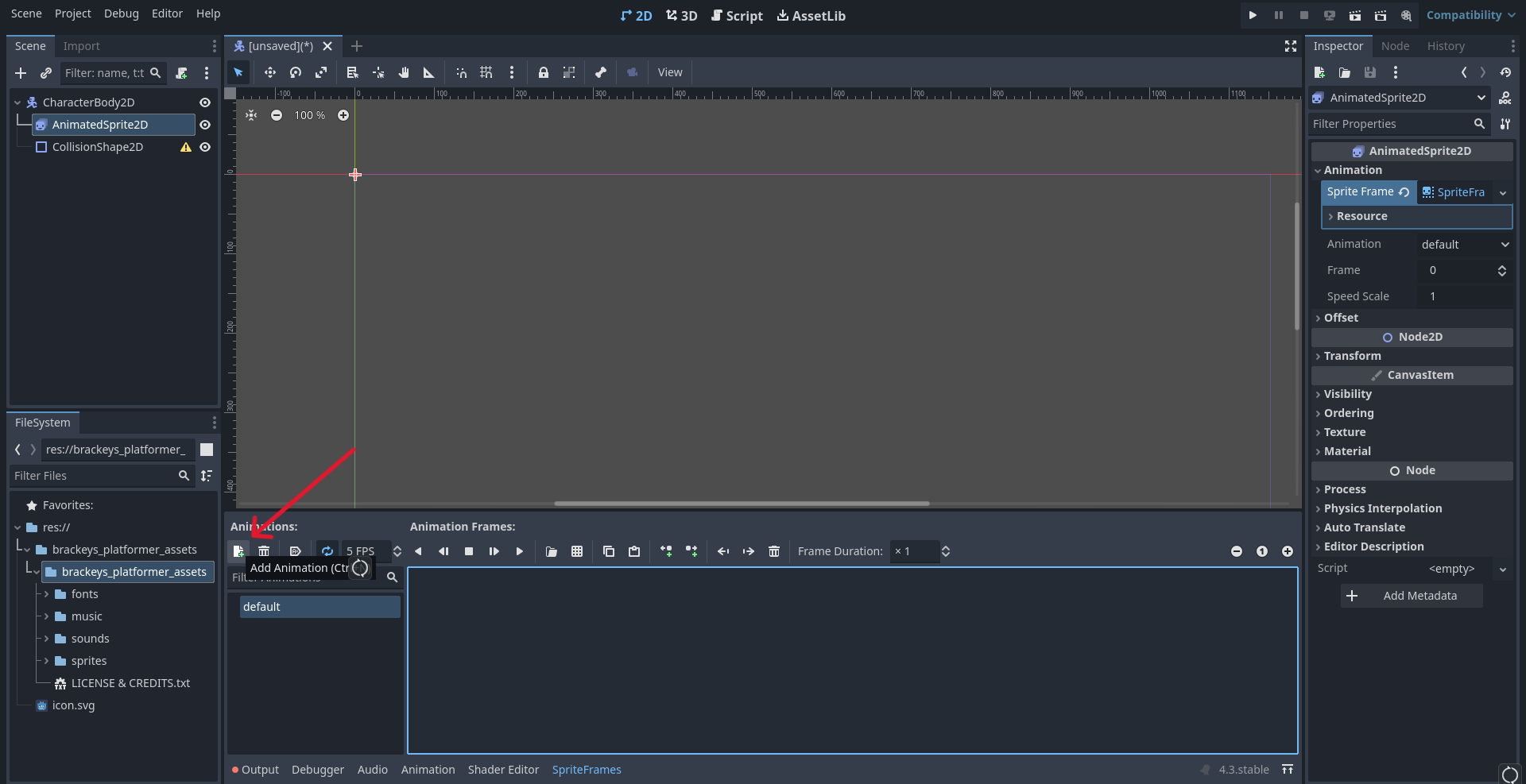
Click on the new animation button at the top left of the new dock and create 4 new animations so you have 5 total. These will be the Idle, Run, Roll, Hit, and Death animations.
Animating The Sprite
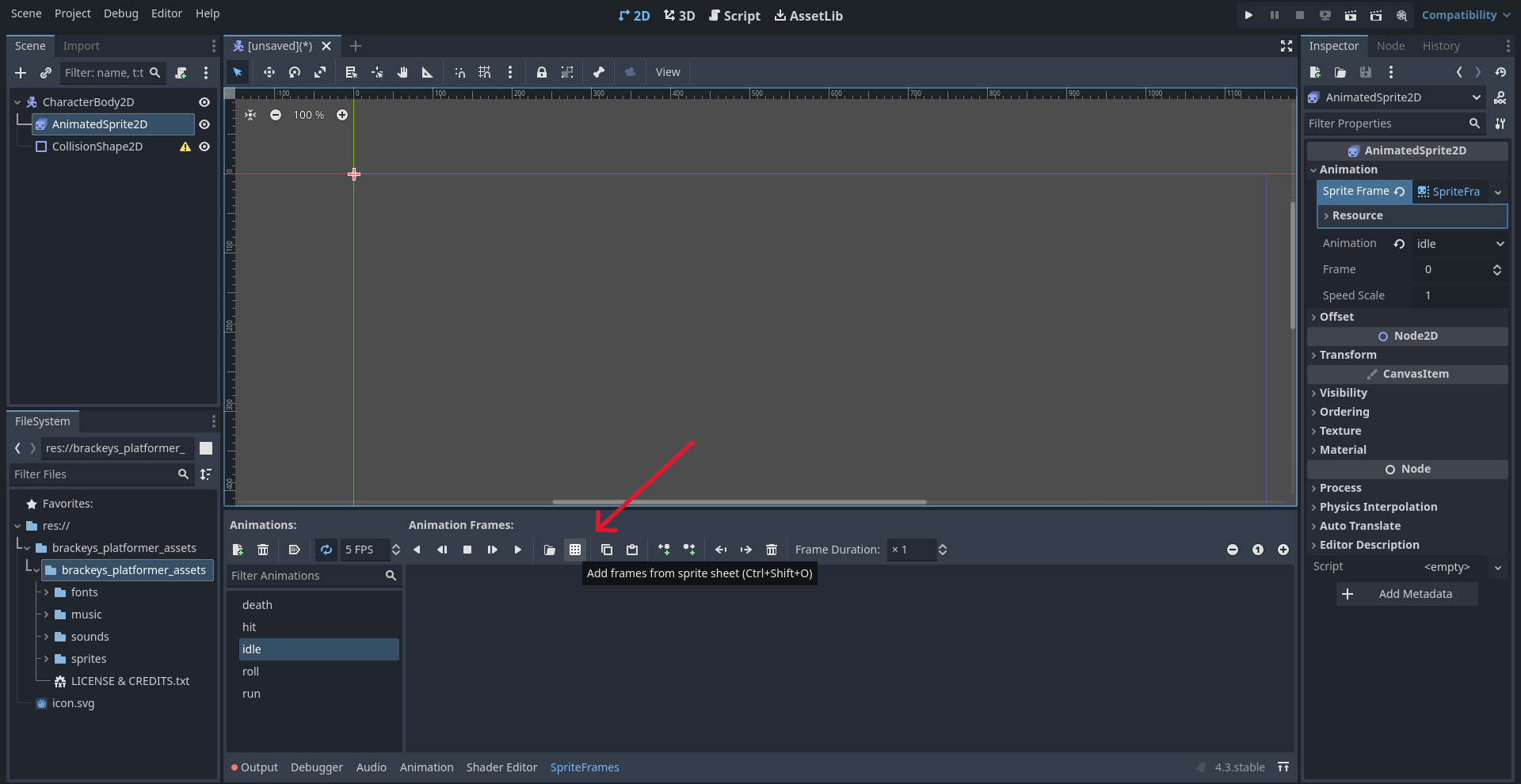
Starting with Idle, click the grid icon to the right of the play/pause buttons. Navigate to the knight.png image in the sprites folder of the asset pack and open it.
On the right, you will need to change both Vertical and Horizontal to 8, as the images are in an 8x8 grid.
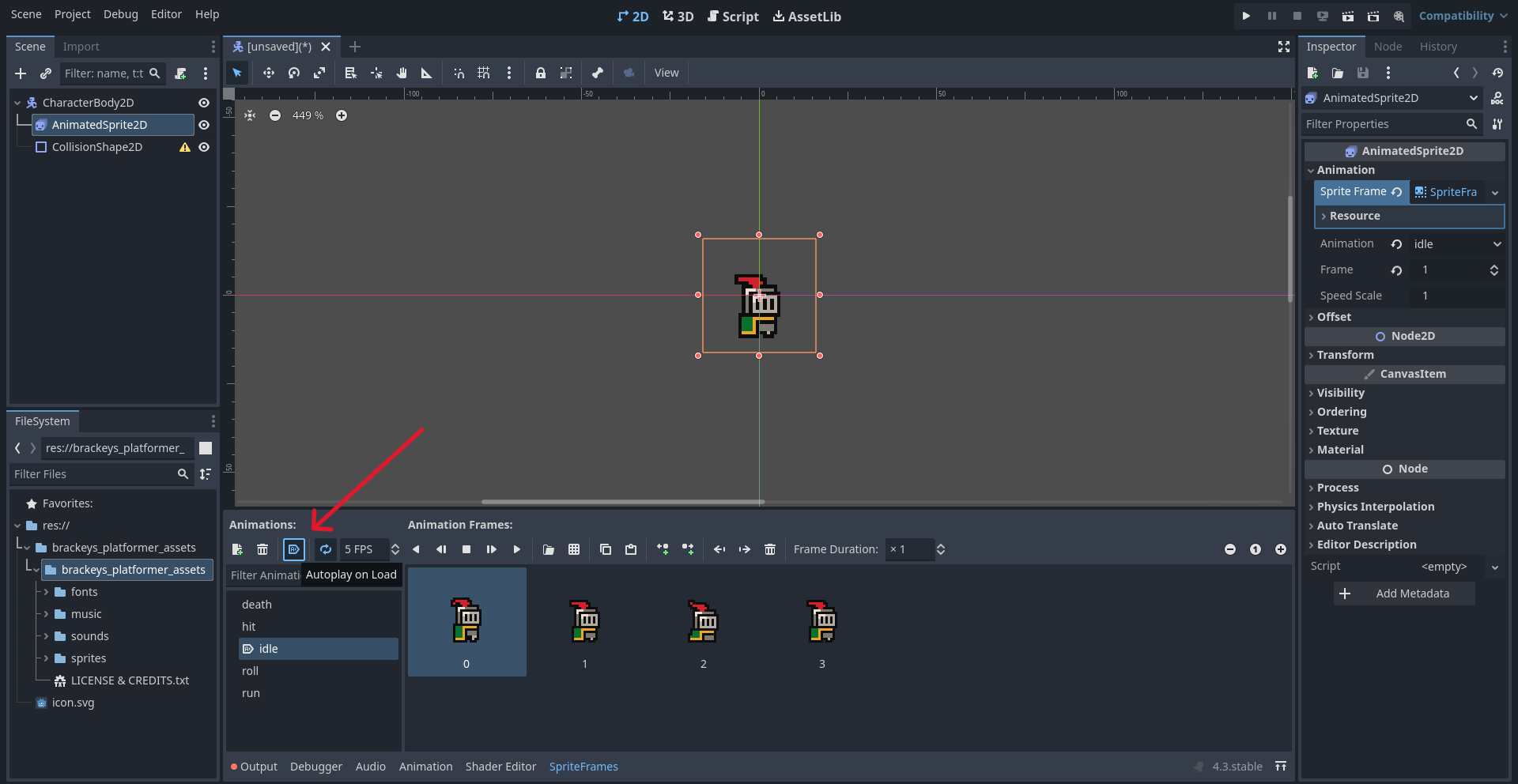
Select the first 4 squares as these are our Idle animation frames. Add these frames and you can now watch your knight idle if you click the play button.
Make sure to have this animation auto play by clicking the icon to the right of the trash can above the “Filter Animations” bar.
Now repeat these steps (not including the auto play) for each of the animations.
Click on Collider in the Node Tree and make the Shape in the Inspector a New CapsuleShape2D. Modify it so that it roughly covers the knight.
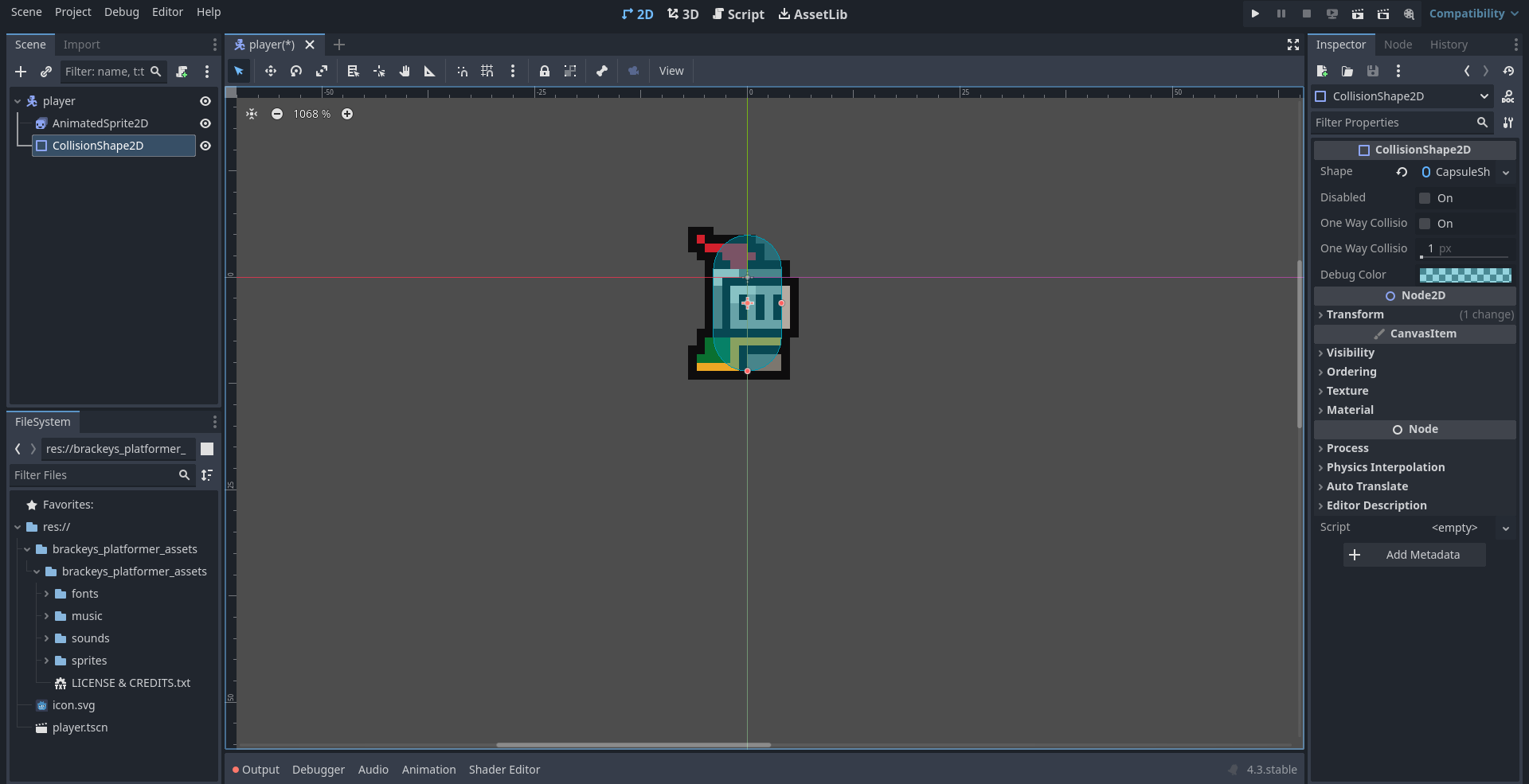
Making this shape smaller makes the game easier for the player. At this stage of the design, making the shape slightly smaller than the sprite is recommended. You can experiment with this to find a size you like for your design.
Add a Camera2D node as a child of the Player (Rename to Camera) and set the Zoom for it in the inspector to 4 for both x and y. If you now run the game, you should see your knight floating in a gray void.
You can save this scene as we are done with the knight for right now.
- I have imported the assets
- I have added the nodes to the scene
- I have added in the animtations