

Paragraphs, Headers, and Images
Learning about the basics of HTML & CSS
Paragraphs
Let's give our website some text!
In the text editor, type:
<p> Hello world </p>
After saving your text file and refreshing the page in your browser, you should see that the text has appeared.
<p> and </p> are tags. Everything from the first tag to the second tag is an HTML element. The text between the <> symbols defines what type of element it should be.
The character p denotes that this element is a paragraph element. Most elements use 2 tags, a closing and opening tag.
Always remember the closing tag. Some elements will display correctly without, however it may cause unexpected results later on.
Headers
In the text editor, above your paragraph element, type:
<h1> My First Header </h1>
Again, save the document in the text editor and refresh your browser.
You'll see that the new element added is bigger than the paragraph element.
You can also make differently sized header elements by using the h1, h2, h3, h4, h5, and h6 tags.
<h1> My First Header </h1>
<h2> My Second Header </h2>
<h3> My Third Header </h3>
<h4> My Fourth Header </h4>
<h5> My Fifth Header </h5>
<h6> My Sixth Header </h6>
Here are some examples!
My First Header
My Second Header
My Third Header
My Fourth Header
My Fifth Header
My Sixth Header
Images
Put any image file of your choice into the same folder as your website.
Now you can use the <img> element to display the image on your website.
<img src="image.jpg" alt="Description of the image.">
Make sure to replace image.jpg with the name of your image file.
Inside the quotation marks next to alt=, you should write a detailed description of the image. This is for users who use screen readers to browse websites to understand the image. It is important to provide accurate and true alt text.
If your image file does not display on your website, check that:
- You have typed the element correctly
- Your image is in the same folder as your html document
- You have saved the document and refreshed your browser
If your image still does not display, check that your image file ends in png, jpg, jpeg, or gif. If not, you may need to find a different image.
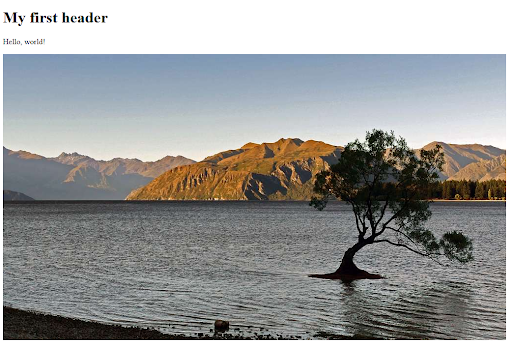
If you've been following along, your website should look something like this. It's a bit boring though... Let's use CSS to personalize it.